
How to host a Counter-Strike 1.6 server for friends
PortPlay lets you publish your CS 1.6 server to the internet without a static public IP address.
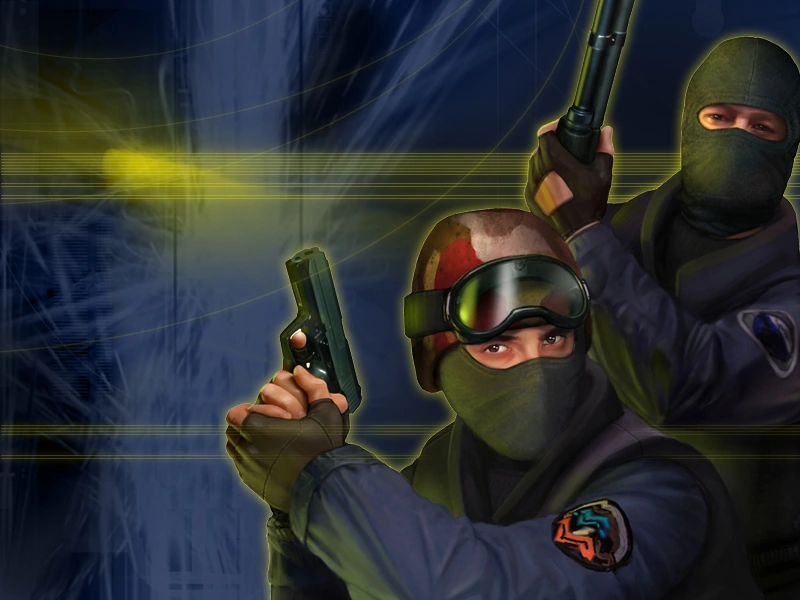
PortPlay is a global proxy service that publishes your local game server through port tunneling. You do not need a public IP address from your ISP. Jump straight to PortPlay installation.
What is PortPlay
PortPlay.net solves the biggest issue with home-hosted servers: no external IP address. Instead of configuring your router and buying a static IP, you install the PortPlay client and your server becomes reachable through an external address.
- No router setup required
- Works with almost any ISP
- Automatically detects running servers
- Includes a free plan to get started
Install PortPlay
Download the client
Download the client from the official website: PortPlay.net
Install and launch it
Install the application and launch it.
Create an account
Register and sign in. A Google account can usually make the process faster.
After sign-in, you will land in the main application window. Now you can launch a Counter-Strike 1.6 server.
Method 1: In-game server (quick start)
This method is best for quick sessions with friends. The server stays online only while you are in the game.
Step 1: Create the server in-game
Launch CS 1.6
Open Counter-Strike 1.6.
Create a new game
Choose New Game.
Configure the settings
- Choose a map, for example
de_dust2 - Set the maximum number of players
- Configure the game mode if needed
Start the server
Click Start Game.
- The server will only stay online while you are in the game
- The default port is usually
27015
Step 2: Publish it through PortPlay
Open PortPlay
Select Counter-Strike 1.6 in the games list.
The application should automatically detect the running CS 1.6 server on port 27015.
Connect the server
Click Create and connect or Connect server.
Copy the external address
PortPlay will generate an external address such as 123.234.231.222:12345.
Step 3: Let your friends join
Friends can connect through the CS 1.6 console:
connect 123.234.231.222:12345Method 2: Dedicated server through HLDS (recommended)
This is the better option if you want the server to keep running even when you are not actively playing.
Step 1: Locate HLDS in the game folder
If you installed CS 1.6 through Steam, hlds.exe is usually already present in the game folder:
C:\Program Files (x86)\Steam\steamapps\common\Half-Life\hlds.exe- If the file is missing, reinstall CS 1.6 through Steam
- The exact path may differ depending on where Steam is installed
Step 2: Launch the dedicated server
Open Command Prompt in the game folder and run:
hlds.exe -console -game cstrike +map de_dust2 +maxplayers 16 +port 27015 +sv_lan 1- The
+sv_lan 1parameter is required for PortPlay to work correctly - The server must already be running and available locally
- The default port is
27015
Step 3: Configure the server
You can configure your server by editing server.cfg inside the cstrike folder:
hostname "My CS 1.6 server"
sv_password ""
rcon_password "your_password"
mp_timelimit 30
mp_roundtime 5
mp_maxrounds 15
mp_startmoney 800
mp_c4timer 45
mp_freezetime 5
sv_gravity 800
sv_maxspeed 320
Step 4: Publish the dedicated server through PortPlay
Open PortPlay
Select Counter-Strike 1.6 in the games list.
PortPlay should automatically detect the running server on port 27015.
Connect the server
Click Create and connect or Connect server.
Copy the external address
PortPlay will generate an external address such as 123.234.231.222:12345.
Step 5: Let players join
Friends connect through the CS 1.6 console:
connect 123.234.231.222:12345Important CS 1.6 settings
For players who want to join
Open the console
Press the ~ key.
If the console does not open, add -console to the game launch options.
Enter the connection command
Type the connection command in the console.
connect address:portFor example:
connect 123.234.231.222:12345Press Enter
After that you should be on the server, and your friends can join the same match.
If players cannot connect
- Make sure the server is running and available locally
- A temporary issue can often be fixed by reconnecting the PortPlay tunnel
- If
sv_passwordis set, share the password with your friends - Check that Windows Firewall is not blocking
hlds.exe
Useful admin commands
RCON commands (remote administration)
Before using RCON commands, authenticate first:
rcon_password your_passwordThen you can use commands such as:
rcon changelevel de_dust2
rcon kick player
rcon ban player
rcon restart
Game mode settings
mp_friendlyfire 0
mp_autoteambalance 1
mp_limitteams 2
mp_buytime 0.25
mp_autokick 1
Installing plugins (AMX Mod X)
Download AMX Mod X
Download the latest version from the official website.
Install it into the server folder
Extract the contents into your server's cstrike folder.
Restart the server
Restart the server so the changes take effect.
- Deathmatch for round-free gameplay
- Extended admin commands
- Map management utilities
- Player statistics plugins
Common problems and fixes
PortPlay does not detect the server
Make sure the server is running on port 27015 and the startup command includes +sv_lan 1.
My friend cannot connect
Verify that you sent the correct address and port. Also check that the server works locally with connect 127.0.0.1:27015.
I get the "Server is not responding" error
Check for +sv_lan 1 in the startup command and make sure your firewall is not blocking the port. Adding hlds.exe to the firewall exceptions can help.
Ping is too high
Try reconnecting the tunnel or using another PortPlay location if your plan allows it. Also review sv_maxrate in server.cfg.
The server does not appear in the server browser
CS 1.6 uses an old master-server system. For PortPlay-hosted sessions, direct console connection through connect is usually the most reliable option.
After these steps, your friends should be able to connect to your CS 1.6 server through PortPlay even if you do not have a public IP address.
You may also find these useful
How to host a CS2 practice server for friends no port forwarding
A step-by-step guide to launching a dedicated CS2 server and sharing access through PortPlay so you can play with friends without a public IP.

How to make a Minecraft server without port forwarding 2026
A step-by-step guide to launching a Minecraft server and connecting friends through PortPlay quickly and with minimal setup.

How to host a Terraria server for friends
A step-by-step guide to launching a Terraria server through TerrariaServer or directly from the game and letting friends join through PortPlay.