
How to make a Minecraft server without port forwarding 2026
Learn how to host a Minecraft server for friends without router access. Fix connection timed out errors, bypass CGNAT, and play without Hamachi or Ngrok.

PortPlay is a global proxy service that publishes your local game server through port tunneling. You do not need a public IP address from your provider. Jump straight to PortPlay installation.
Host Minecraft server behind CGNAT with PortPlay
PortPlay.net solves the biggest problem of home-hosted servers: no external IP address (CGNAT). If you constantly get "connection timed out" because you can't port forward, PortPlay is the solution. Instead of configuring your router and paying for a static IP, you install the PortPlay client and your server becomes reachable through an external address.
- No router setup required
- Works with almost any ISP
- Automatically detects running servers
- Includes a free plan to get started
Install PortPlay
Download the PortPlay client
Visit the official website PortPlay.net and download the client for your operating system. Then launch the installer.
Install and launch the application
Follow the installer steps. After installation, open the PortPlay app.
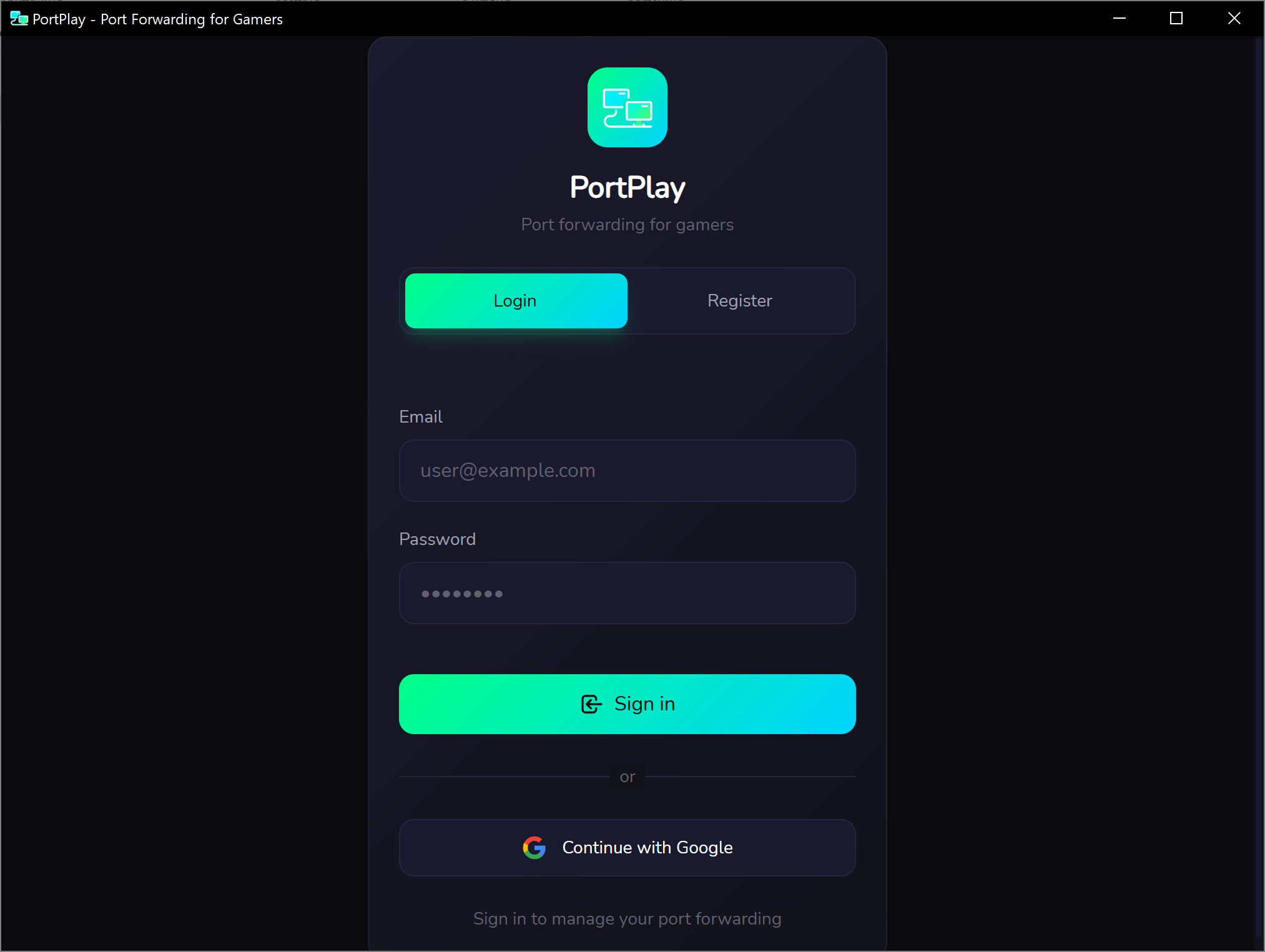
Sign in or register
On the first launch you need to create an account or sign in. A Google account is usually the fastest option.
After signing in, you will arrive at the main application window. Now you can launch your Minecraft server.
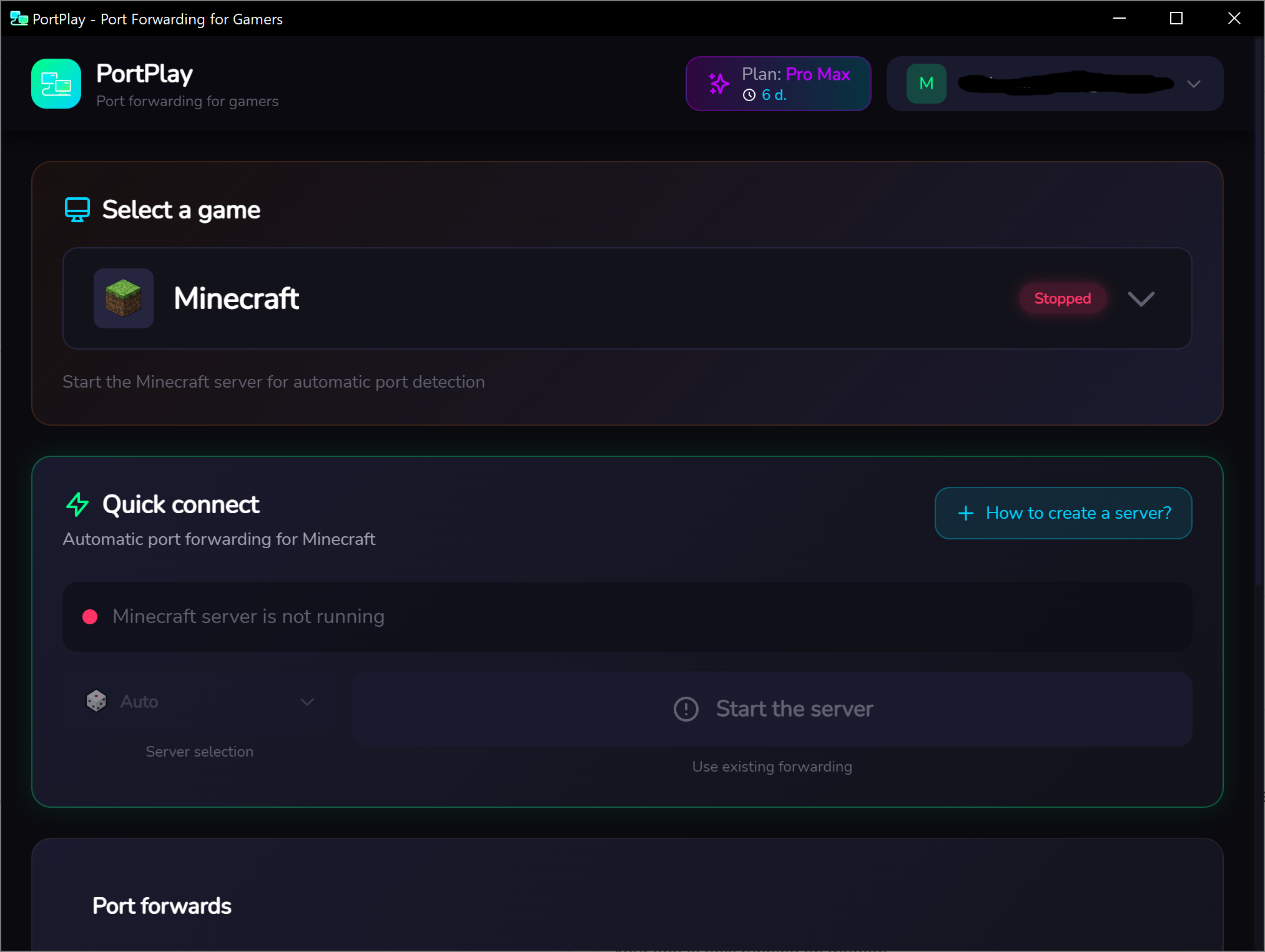
Method 1: Launch from inside the game
The fastest option is to open your world to LAN directly from Minecraft.
Open your single-player world
Launch Minecraft and load the world you want to share.
Open the world to LAN
Press ESC to open the pause menu and choose Open to LAN.
Set your options
Choose the game mode and enable cheats if needed. Then click Start LAN World.
Wait for the chat message
Minecraft will print a message like Local game hosted on port XXXXX in chat. That means the local server is running.
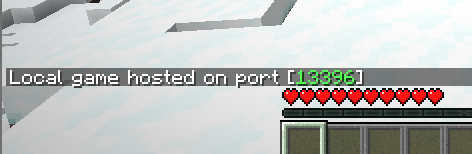
Do not close Minecraft. The server only exists while your world is open. If you leave the world, the server stops.
Connect with PortPlay (LAN world)
Let PortPlay detect the server
PortPlay should automatically detect the running Minecraft server and offer to create a connection for it.
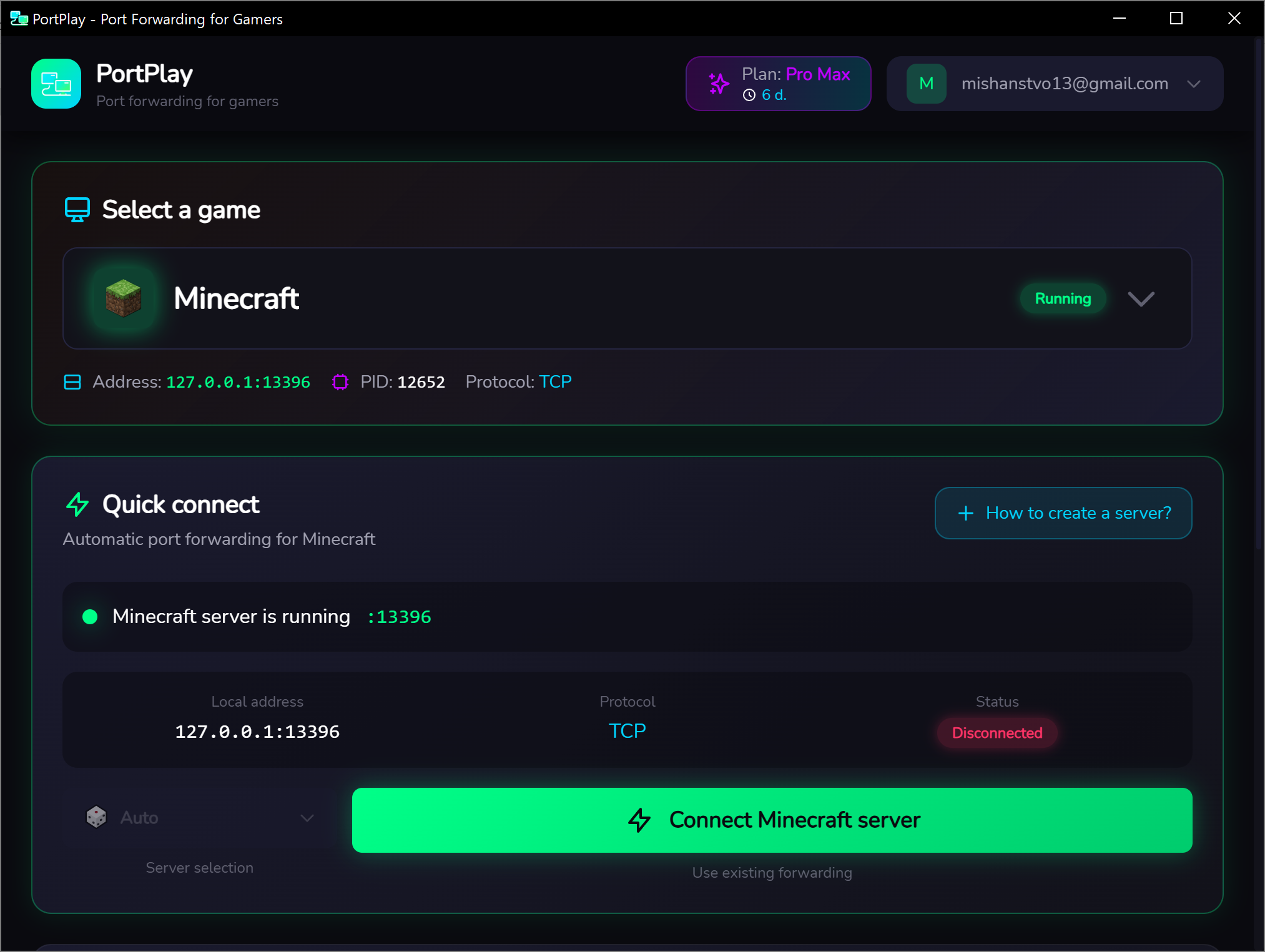
Create the connection
Click Create and connect. On the free plan the location is assigned automatically. Paid plans let you choose a preferred location.
Copy the server address
After the tunnel is created, PortPlay will show an external IP:port address such as 123.234.231.222:12345. Copy it.
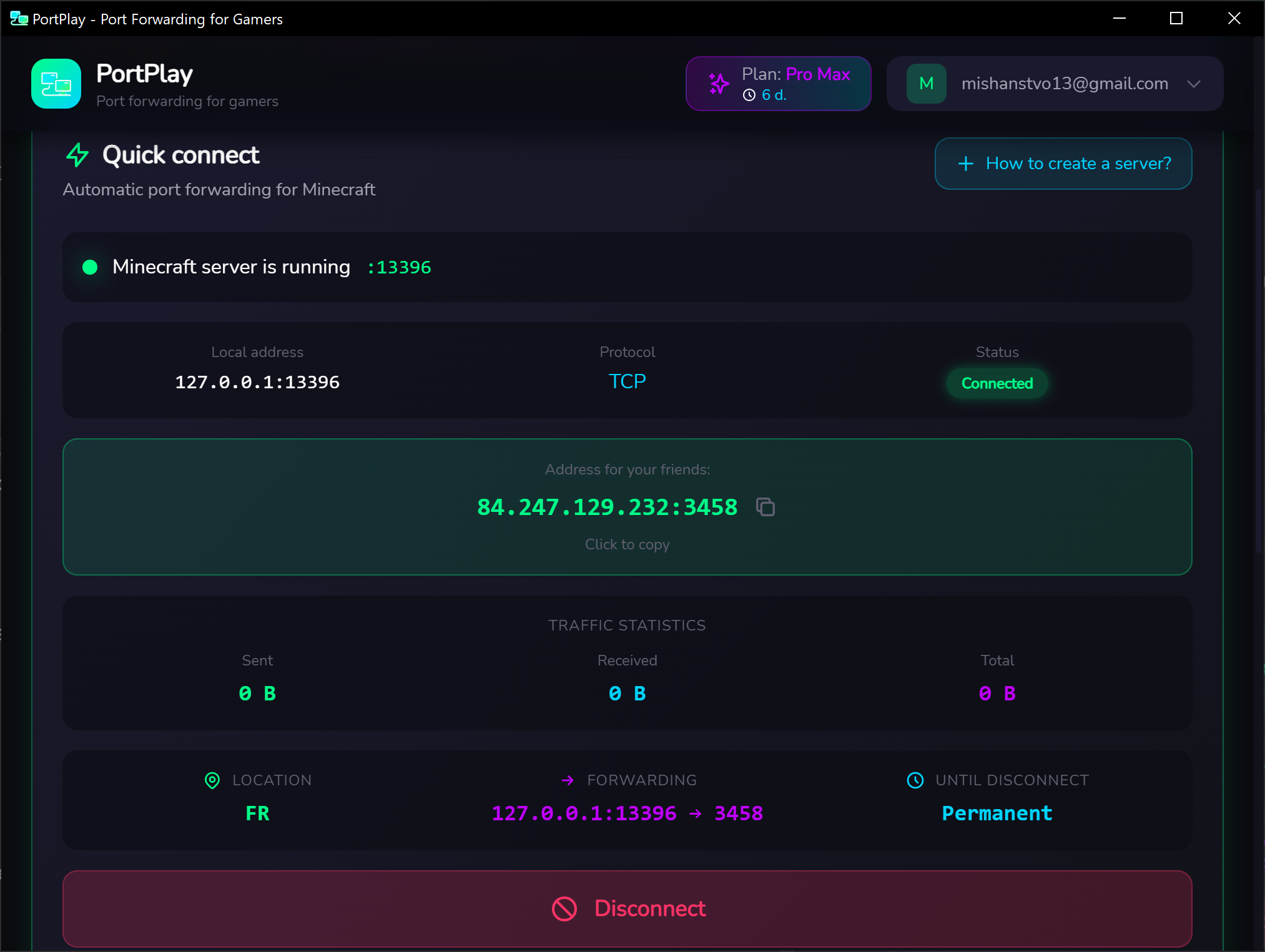
Send the address to friends
Share this address with your friends. They can join through Multiplayer → Direct Connection or add the server manually inside Minecraft.
Your friends can now join your Minecraft world and play together with you.
Method 2: Dedicated server
For a more permanent setup, use a dedicated server.jar instead of a world hosted from inside the game.
Download server.jar
Download the official Minecraft server jar for the version you want and create a separate folder for it.
Run the server once
Start it with the command below. On the first launch it will generate configuration files and then stop.
java -Xms2G -Xmx4G -jar server.jar noguiAccept the EULA
Open eula.txt and change eula=false to eula=true.
Start the server again
Run the same command one more time. The server will now fully start and generate the world.
In server.properties, you can configure the server port, game mode, difficulty, whitelist, and more. The default Minecraft port is 25565. If you use a non-premium setup, you may need to change online-mode to false.
Connect with PortPlay (dedicated server)
Let PortPlay detect the server
Once the server is running, PortPlay should find it automatically and display it in the list of available servers.
Publish the Minecraft server
Click the button to connect the Minecraft server. PortPlay will create a tunnel and assign an external address.
Test the connection
Try joining the server from your own computer using the external address. If it works, send the same address to your friends.
You now have a Minecraft server that can stay available independently from your game session. Friends can join even when you are not in a local world.
Stop sharing the server
To stop publishing the server, click Disconnect in the PortPlay app. The Minecraft server can keep running locally, but outside access will be removed.
Helpful tips
Before publishing through PortPlay, make sure the server starts and works on your local machine. That helps separate server issues from networking issues.
- Allocate enough RAM: For modded gameplay,
4 GBor more is usually a safer starting point. - Make backups: Regularly copy the
worldfolder so you do not lose progress. - Use a whitelist: Enable the whitelist in
server.propertiesfor a private server. - Choose a better route if needed: If latency matters, test different PortPlay locations when your plan allows it.
FAQ
How to play Minecraft with friends without Hamachi or Ngrok?
PortPlay is the best free alternative to Ngrok for game servers and a modern replacement for Hamachi. Unlike Hamachi, your friends don't need to install any VPN software—they just enter the IP address PortPlay gives you.
Minecraft server connection timed out no port forward fix?
If your friends get a "connection timed out" error, it means your router or ISP is blocking incoming connections (often due to CGNAT). PortPlay creates an outbound tunnel that bypasses this restriction completely without any router access.
Can I use PortPlay as a playit.gg alternative on Windows?
Yes! PortPlay is a fast, easy-to-use playit.gg alternative for Windows. It provides lower latency routes in many regions and features a simple, native UI.
Can I play with mods?
Yes. Install the same mods on the server and on all client computers. PortPlay works independently of the game version or modpack.
You may also find these useful
How to host a CS2 practice server for friends no port forwarding
A step-by-step guide to launching a dedicated CS2 server and sharing access through PortPlay so you can play with friends without a public IP.
How to host a Terraria server for friends
A step-by-step guide to launching a Terraria server through TerrariaServer or directly from the game and letting friends join through PortPlay.