
How to host a Terraria server for friends
A practical guide to running a Terraria server for friends in two ways: with TerrariaServer or directly from the game, then publishing it through PortPlay.

Terraria gives you two convenient ways to host a world for friends: run a standalone server with TerrariaServer.exe, or create a multiplayer world directly inside the game. In both cases, PortPlay can publish the server with an external address without manual router setup.
What you need to launch a Terraria server#
To open a world for friends, you will usually need:
- Terraria installed on your PC
- an existing world or enough time to create a new one
- a stable internet connection
- the PortPlay application for external access
TerrariaServer.exeif you want a dedicated standalone server
The first method uses TerrariaServer.exe, which runs as a separate server process in its own console window. The second method is to host directly from the game as the world owner. Terraria most commonly uses port 7777 by default.
Install PortPlay#
Download the PortPlay client
Visit the official website PortPlay.net and download the Windows client.
Install and launch the app
Run the installer, complete setup, and open PortPlay.
Sign in or create an account
On the first launch, sign in or register with your email or Google account.
After signing in, the app is ready to detect local servers. Now you can launch Terraria using whichever method you prefer.
Method 1: Launch with TerrariaServer#
This is the better option if you want a standalone server in its own window and do not want to depend on the in-game interface.
Open the Terraria folder
Find the folder where Terraria is installed. The server executable is usually located next to the main game files.
Run TerrariaServer.exe
Start the server executable. A console window will appear and ask you to choose a world, player limit, and port.
steam\steamapps\common\Terraria\TerrariaServer.exe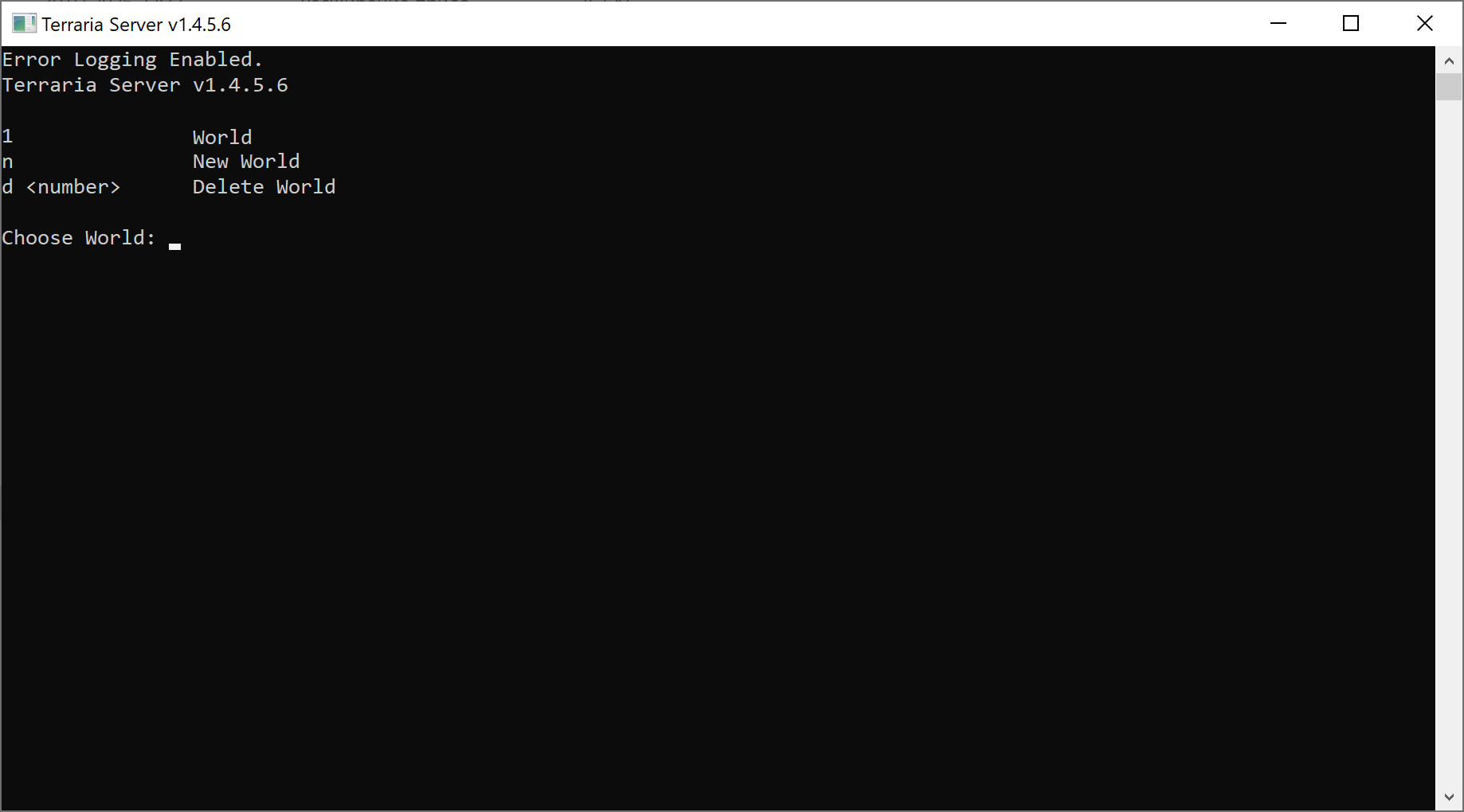
Choose a world
Select an existing world or create a new one through the server startup wizard.
Set the player limit
Choose the number of slots you want. Leave some headroom, but keep your PC performance in mind.
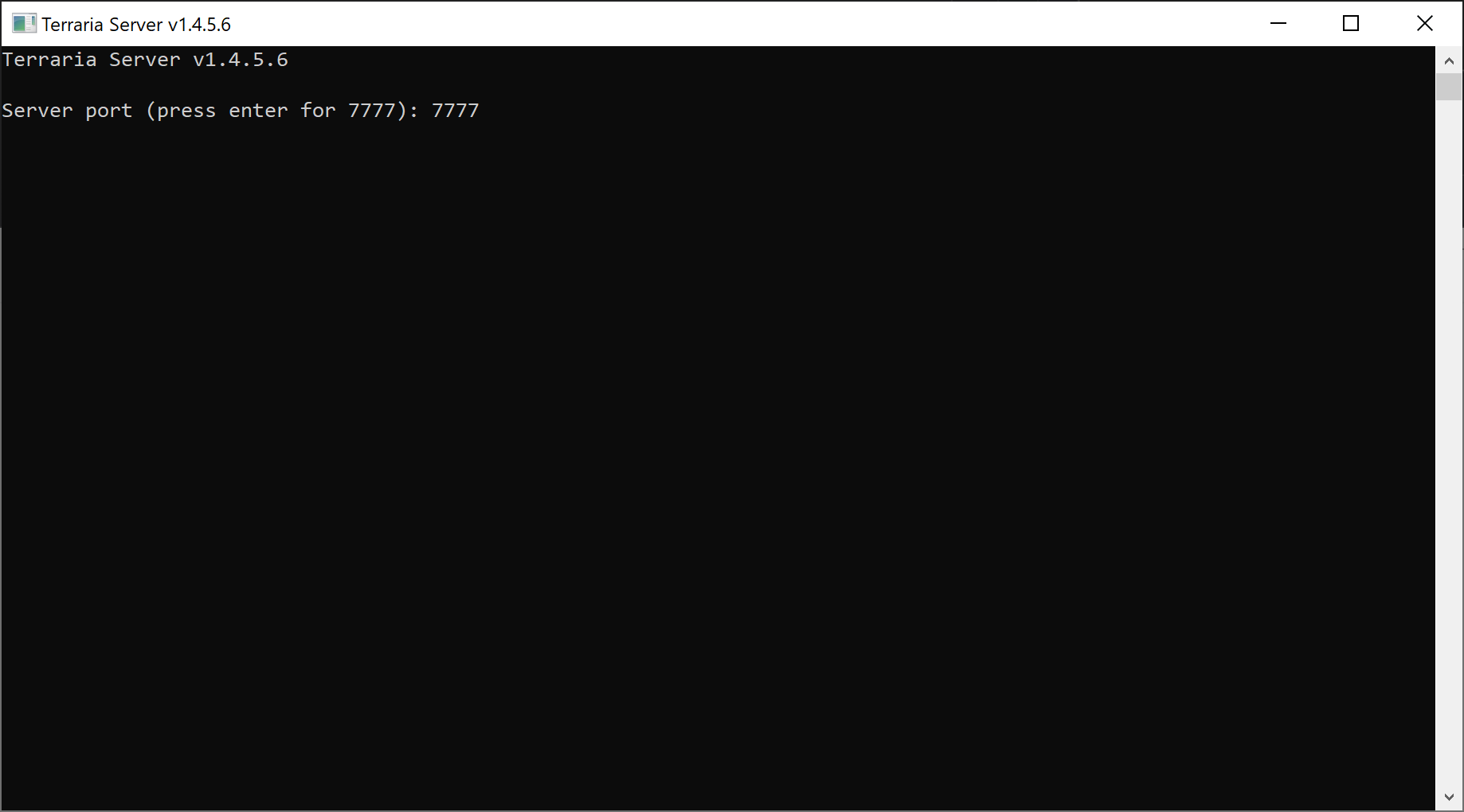
Confirm the port
Leave the default port 7777 unless you have a specific reason to change it. That is the port players will use to connect.
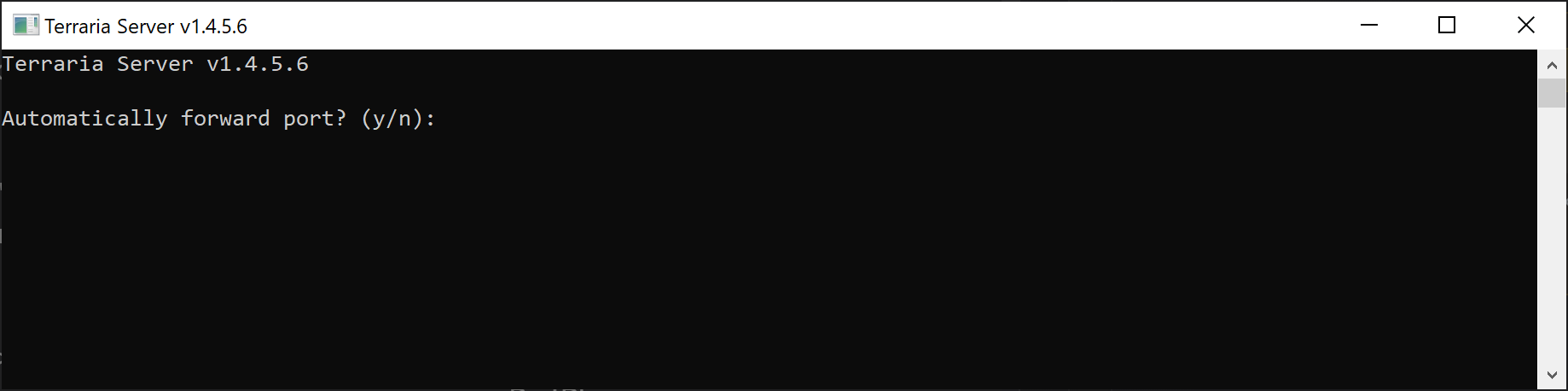
Allow automatic forwarding prompt
When the console asks Automatically forward port, answer y and press Enter.
Set a password if needed
Leave the field empty if you want an open server. If you set a password, your friends will need to enter it during connection.
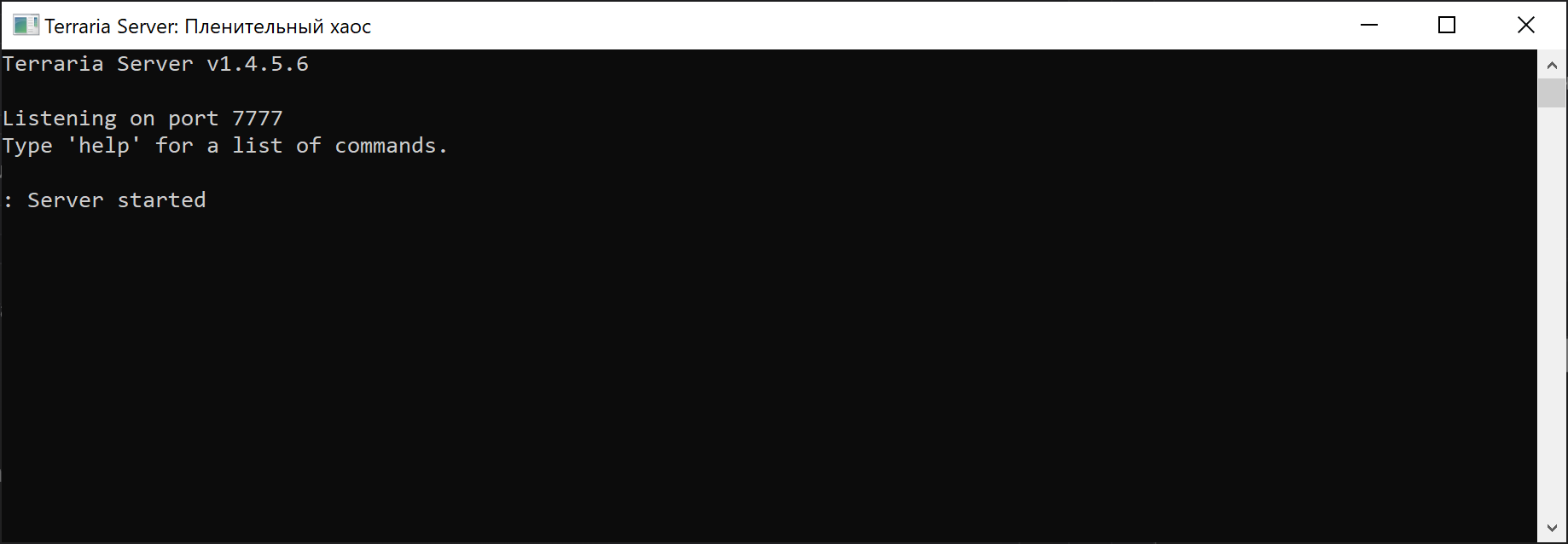
The server keeps running only while the TerrariaServer.exe console window stays open. If you close it, the world shuts down and all players disconnect.
Connect TerrariaServer through PortPlay#
Wait for PortPlay to detect the server
Once Terraria Server is already running, select Terraria in PortPlay. The application should detect the local server and show it in the list of available connections.
Create the connection
Click the button to connect the Terraria server. PortPlay will create an external address and map it to your local port.
Copy the external address
After connection, the app will display an address in the IP:port format. That is what you need to send to friends.
Send the address to friends
Your friend opens Terraria, enters multiplayer, and connects using the PortPlay address.
Important: Terraria asks for the IP address and port in separate fields. Enter the IP first, then the port. If you paste ip:port into the IP field, it will not work.
If the local Terraria server is running correctly, your friends will be able to join through the external address generated by PortPlay.
Method 2: Launch from the game#
This is the easiest option if you just want to quickly open your world for friends without using a dedicated console window.
Launch Terraria
Open the game and go to the multiplayer menu.
Choose multiplayer
Create a new world or choose an existing one that you want to share with friends.
Create and play
Terraria will ask you to choose your character and world. Turn the Steam multiplayer option off if needed, click Start, then set a password if you want and confirm. After the world loads, the server is running.
Done
Once the world finishes loading, the server is already active and you are inside it as the host.
If you leave the world or close Terraria, the server stops immediately. This method is perfect for quick sessions, but not for a long-running server.
Publish the in-game server through PortPlay#
Keep the world open on the host PC
First make sure the world is already running and you are still inside the game.
Open PortPlay
In the app, choose Terraria. It should detect the local server created by the game itself.
Create an external connection
Click the connection button and PortPlay will issue an external address for your friends.
Send the address to friends
Friends enter the external IP, then the port, and connect to your world.
Important: Terraria expects the IP address and port separately. Enter the IP first and the port after that.
A world launched directly from the game can also be published through PortPlay. It is the simplest option if you only want a quick co-op session.
How friends connect to the Terraria server#
Check the server locally first#
Before you invite anyone, verify that the server actually works on your own machine.
Launch Terraria
Open the game on the same computer where the server is running.
Open multiplayer
Choose the network game mode and the option to connect by IP address.
Use a local address
For a quick test, try 127.0.0.1 or the local IP address of your computer inside your home network.
If you cannot connect locally, the problem is not PortPlay or your ISP. It means the Terraria server itself was not started or configured correctly.
How a friend joins#
Open Terraria and choose multiplayer
Your friend should go to Multiplayer and choose the option to join by IP.
Choose a character
Select the character that will be used on the server.
Enter the server IP address
In the address field, enter only the external IP provided by PortPlay without the port.
Enter the server port
In the port field, enter the server port shown after the : in the PortPlay address, for example 45551.
Enter the password if enabled
If you set a password when launching the server, Terraria will ask for it during the connection process.
What usually prevents players from joining#
- the Terraria server is not running or has already been closed
- the host left the world when the server was launched from inside the game
- the wrong port was shared
- PortPlay has not created the external connection yet
- Windows Firewall is blocking the local server
- the host sent the wrong address to friends
Helpful tips#
If you only want a quick evening session, hosting directly from Terraria is usually easier. If you want a more stable and convenient setup, use TerrariaServer.exe.
- For short sessions, launching from the game is usually easier.
- For longer play sessions and a separate server window,
TerrariaServer.exeis more convenient. - If the server lags, reduce the player count and close unnecessary programs on the host PC.
- If you use a password, only share it with the people you actually want on the server.
FAQ#
Which port does Terraria use by default?
Terraria usually uses port 7777 unless you changed it manually during server startup.
Can I run a Terraria server without TerrariaServer.exe?
Yes. You can host directly from the game through the built-in multiplayer flow. It is a full multiplayer option if you do not need a dedicated standalone server.
What is the difference between TerrariaServer and hosting from the game?
TerrariaServer.exe runs as a separate server process in its own window. Hosting from the game is simpler, but the server exists only while the host stays inside the world.
Can I use PortPlay without configuring my router?
Yes. That is the main point of PortPlay: your server stays local while the service provides an external address for your friends.
Which method is better for Terraria?
For a quick start, hosting directly from the game is easier. For a more convenient and stable dedicated setup, TerrariaServer.exe is the better option.
You may also find these useful

How to make a Minecraft server without port forwarding 2026
A step-by-step guide to launching a Minecraft server and connecting friends through PortPlay quickly and with minimal setup.

How to host a CS2 practice server for friends no port forwarding
A step-by-step guide to launching a dedicated CS2 server and sharing access through PortPlay so you can play with friends without a public IP.