
How to host a CS2 practice server for friends no port forwarding
Learn the easiest way to host a CS2 dedicated server on Windows to practice smokes or play 1v1 with friends far away. Fix 'connection failed after 30 retries' errors.
PortPlay is a global proxy service that publishes your local game server through port tunneling. You do not need a public IP from your ISP. Jump straight to PortPlay installation.
If you create a server from inside the game, other players usually will not be able to connect. The server may appear inside the PortPlay app, but the connection itself will fail.
Easiest way to host a CS2 dedicated server on Windows
PortPlay.net solves the biggest problem of modern CS2: Valve removed easy listen servers for friends. Now you need a dedicated server, but without a static IP, you can't share it. Instead of configuring your router and paying for a static IP, you install the PortPlay client and your server becomes reachable through an external address.
- No router configuration required
- Works with almost any ISP
- Automatically detects running servers
- Includes a free plan to get started
Install PortPlay
Download the client
Download the client from the official website: PortPlay.net
Install and launch it
Install the application and launch it.
Create an account
Sign up and log in. You can usually use a Google account for a faster setup.
After registration you will land in the main PortPlay window. Now you can launch your Counter-Strike 2 server.
Method 1: Dedicated CS2 server (recommended)
This is the best option if you want the server to stay online even when you are not actively playing.
Step 1: Launch the dedicated CS2 server
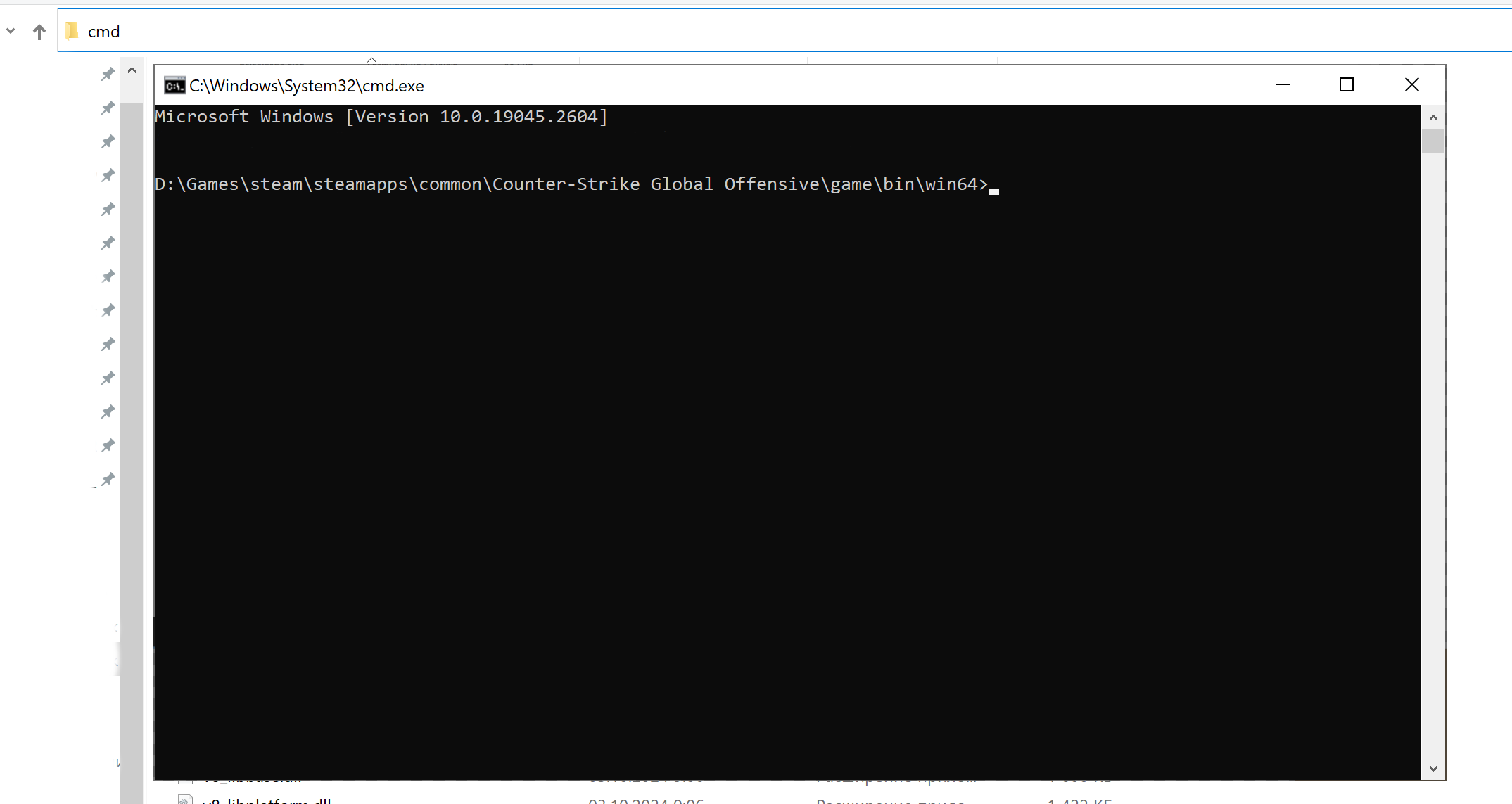
Go to the folder where the CS2 executable is located:
steam\steamapps\common\Counter-Strike Global Offensive\game\bin\win64Then open Command Prompt in that folder. Click the Explorer address bar, type cmd, and press Enter. You should get a console window like the one shown in the screenshot below:
Make sure the server is started with the correct parameters:
cs2.exe -dedicated -port 27015 -console -usercon +sv_lan 1 +map de_dust2 +maxplayers 8 +game_type 0 +game_mode 0
- The
+sv_lan 1parameter is required for PortPlay to work correctly - The server must be running and reachable locally before you publish it
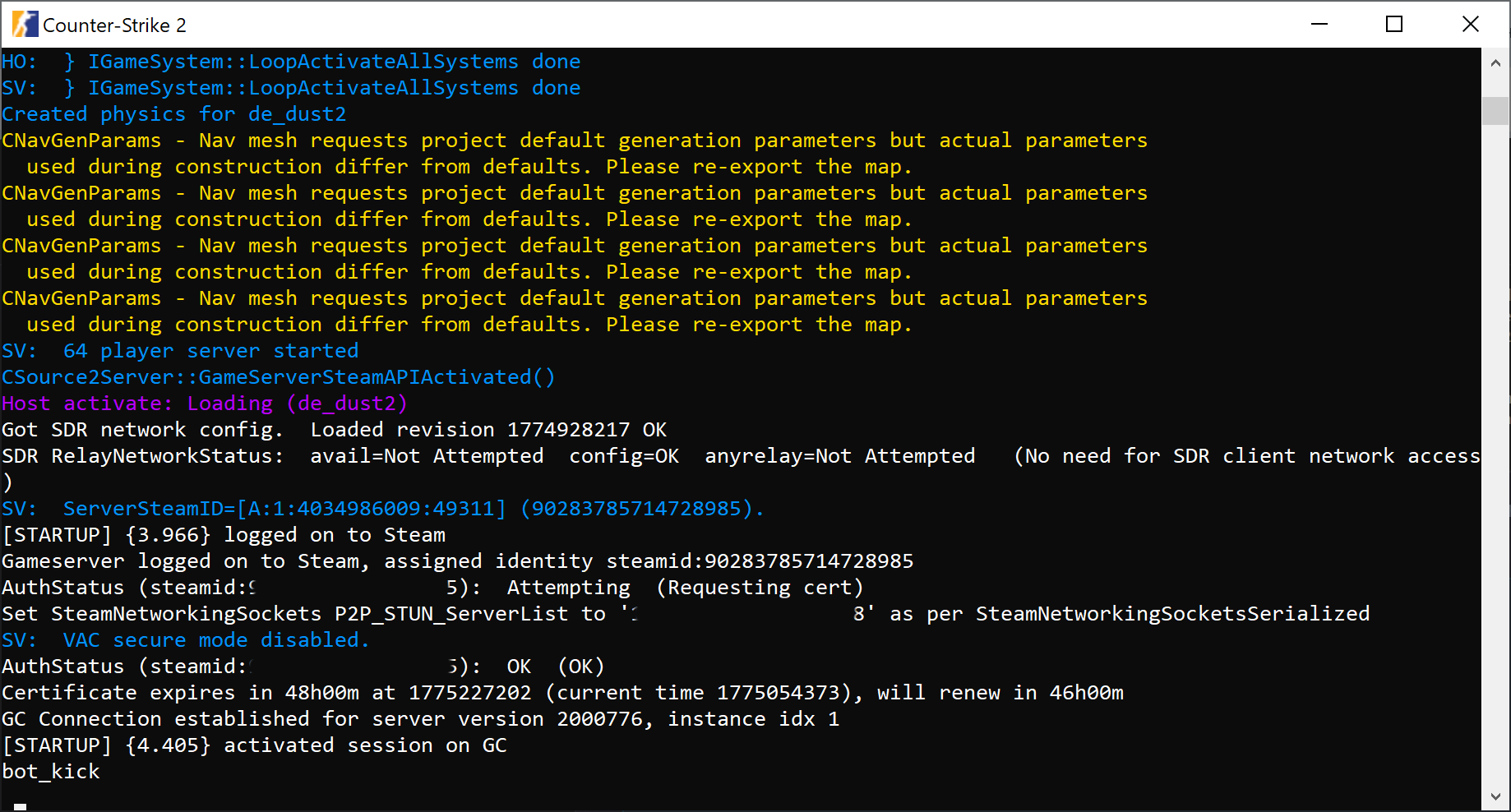
Step 2: Remove bots
bot_kickThe bot_kick command removes all bots from the lobby. You can skip this if you want to keep bots enabled.
Step 3: Publish the server through PortPlay
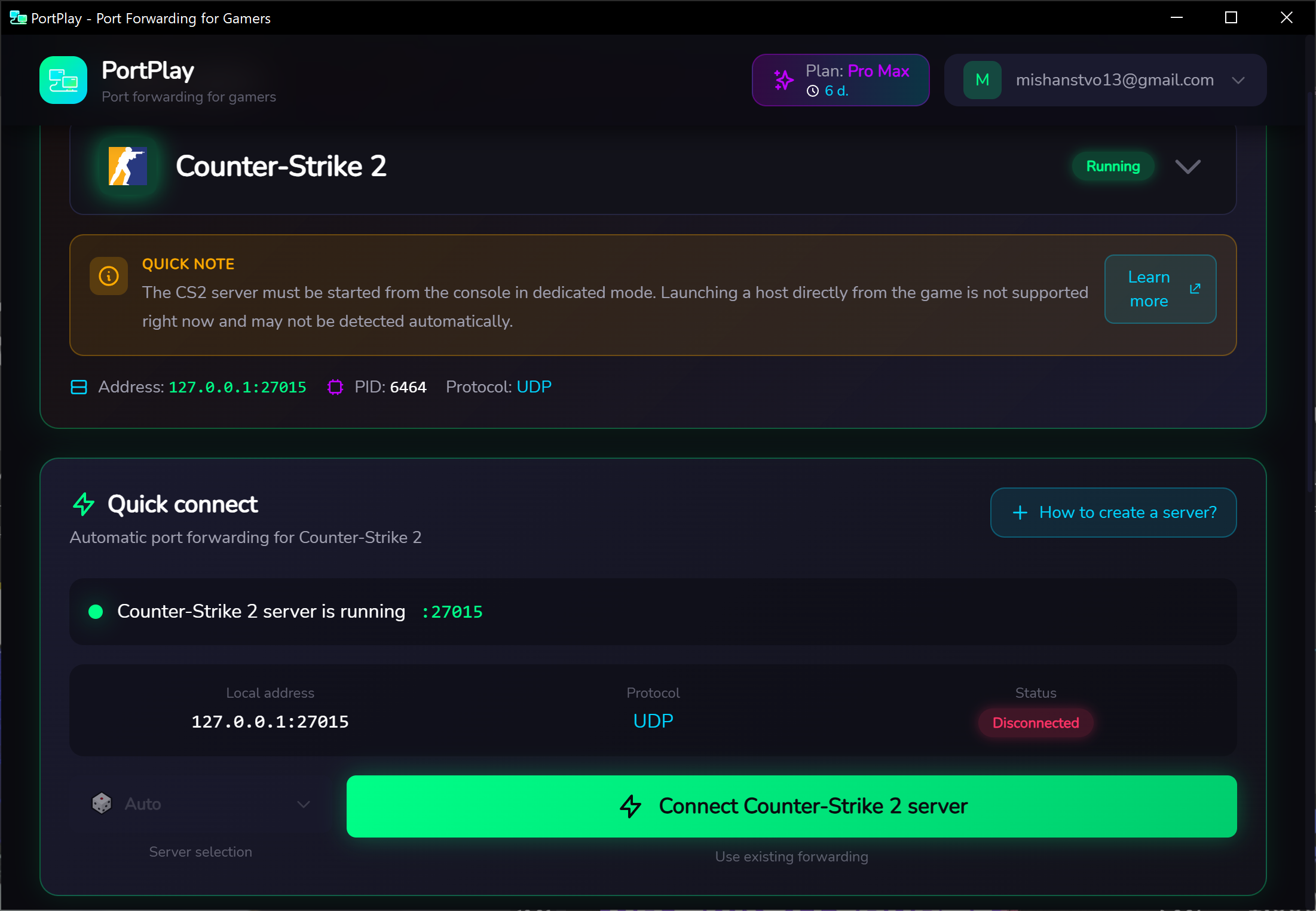
Open PortPlay
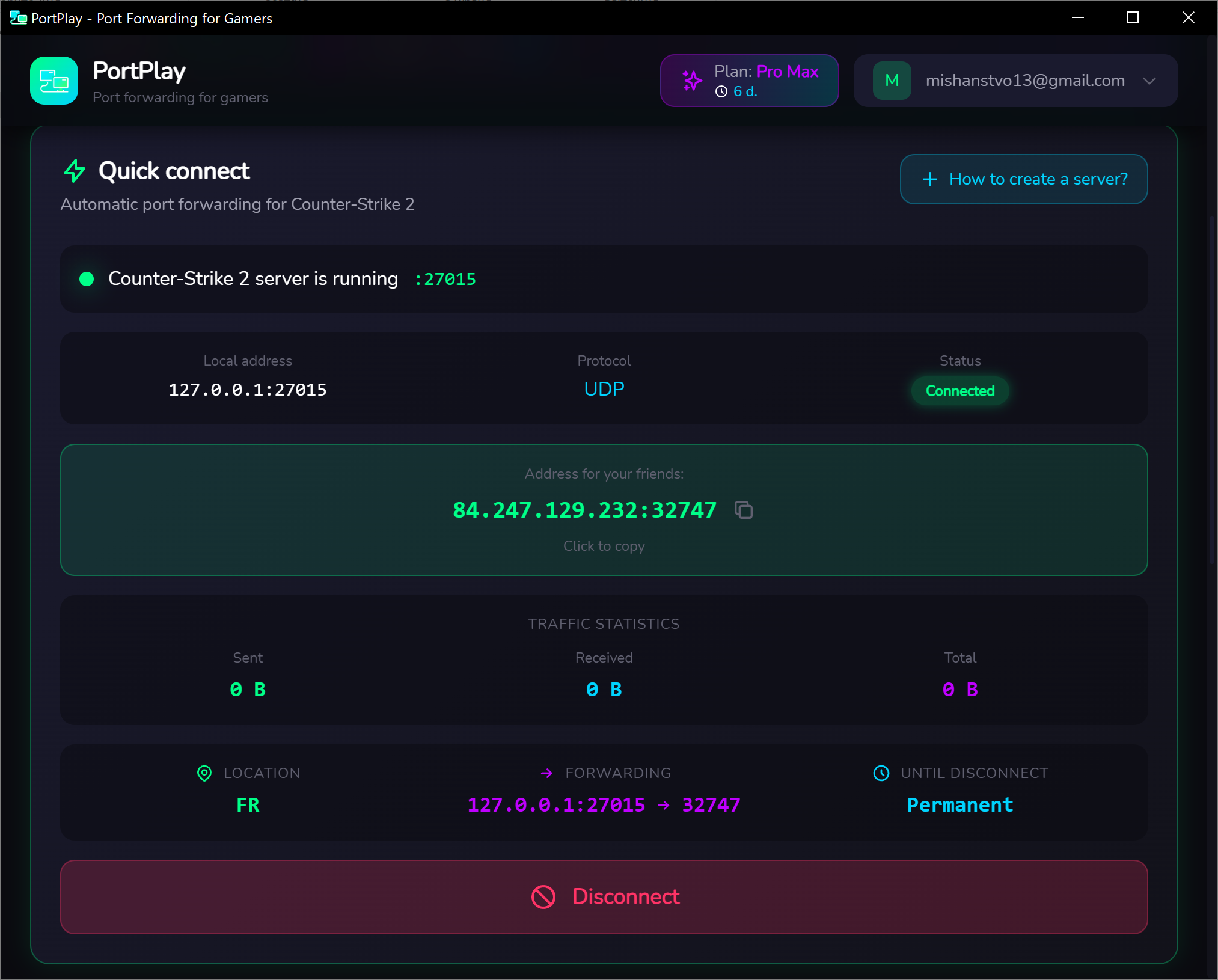
Select Counter-Strike 2 in the games list.
PortPlay should automatically detect the running CS2 server on port 27015.
Connect the server
Click Create and connect or Connect server.
Copy the external address
PortPlay will generate an external address such as 123.234.231.222:12345.
Step 4: Let players join
Your friends can join through the CS2 console:
connect 5.188.88.8:36552Important CS2 client settings
For players who want to join
Open the console
Press the ~ key.
If the console does not open, enable the developer console in the game settings:
Settings > Game > Enable Developer Console > Yes
Enter the connection command
Type the connection command in the console.
connect address:portFor example:
connect 123.234.231.222:12345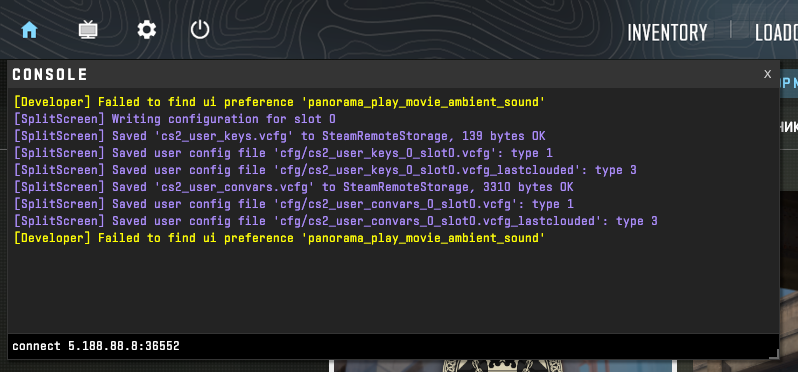
Press Enter
After that, you are on the server and your friends can join the same match. Everyone can play at the same time.
If players cannot connect
- Make sure the server is running and available locally
- A temporary issue may be fixed by reconnecting the tunnel in PortPlay
- If you configured a password with
sv_password, share it with your friends as well
Common problems and fixes
CS2 connection failed after 30 retries local server fix?
This error happens when your friend tries to join your local IP or your public IP, but your router blocks the connection. PortPlay fixes this by creating a secure tunnel, giving you an external IP:Port that your friends can use to join instantly without the '30 retries' timeout.
How to play 1v1 in CS2 with a friend far away?
Setting up a 1v1 server in CS2 requires a dedicated server (since listen servers are restricted). Follow our guide above to run cs2.exe -dedicated, start the server with a workshop aim map, and publish it via PortPlay so your friend can join from anywhere.
LogMeIn Hamachi alternative for gaming 2026?
PortPlay is a great modern alternative to Hamachi. The main difference is that your friends don't need to install PortPlay—only the server host needs it. Your friends simply copy the IP address and connect directly via the game console.
How do I change the map on the server?
Use the server console. Type map de_mirage or changelevel de_inferno.
After these steps, your friends should be able to connect to your CS2 server through PortPlay even if you do not have a public IP address.
You may also find these useful

How to make a Minecraft server without port forwarding 2026
A step-by-step guide to launching a Minecraft server and connecting friends through PortPlay quickly and with minimal setup.

How to host a Terraria server for friends
A step-by-step guide to launching a Terraria server through TerrariaServer or directly from the game and letting friends join through PortPlay.
How to host a Counter-Strike 1.6 server for friends
A step-by-step guide to launching a dedicated CS 1.6 server and sharing access through PortPlay so you can play with friends without a public IP.